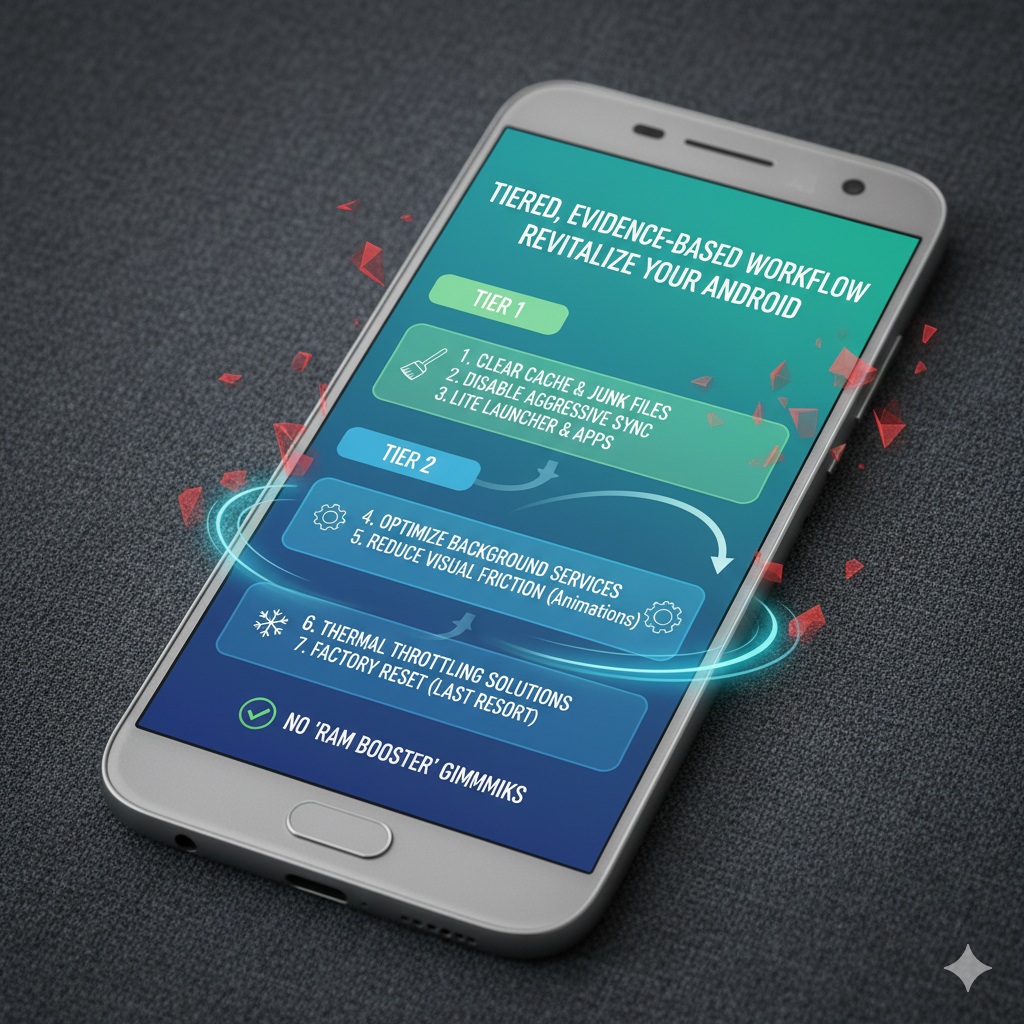

A tiered, evidence-based workflow to make any aging or sluggish Android phone feel faster—without gimmicky “RAM booster” apps.
Your phone doesn’t suddenly become “slow.” It accumulates friction: cached junk, overly aggressive background sync, bloated launchers, duplicated services, thermal throttling, and visual settings that stretch perceived delay.
Below is a tiered workflow. Start at Tier 1. Only continue if the device still stutters (e.g., choppy scrolling in system apps, multi‑second cold launches, frequent keyboard lag). This prevents “tweak fatigue” and keeps changes reversible.
Snapshot: How to Know You Improved Anything
Before touching settings, capture:
- Cold app launch times (open Settings, Messages, Camera from closed state; measure with a stopwatch—yes, crude, but consistent).
- Average free RAM after a fresh reboot and again after 6 hours of typical use (use a lightweight monitor app—not a booster).
- Thermal state: Does the phone feel warm idling? (Subjective note + optional CPU temp reading if available.)
- Any regular stutter triggers (e.g., opening keyboard in messaging apps, scrolling photo gallery).
Record these in a simple note. You’ll compare at Tier checkpoints.
Tier 1: Quick Wins (Under 5 Minutes)
- Clear caches of Google Play Services and Android System WebView (Settings → Apps → Show system). These accumulate over time.
- Reduce animations (Developer Options):
- Window animation scale: 0.5x
- Transition animation scale: 0.5x
- Animator duration scale: 0.5x
Setting them to 0 gives a harsh feel and can paradoxically increase perceived lag; 0.5x retains smoothness while speeding transitions.
- Restart if you haven’t in >5 days. Many background processes persist longer than you think.
Validation checkpoint: Cold app launches should drop perceptibly (100–300 ms).
Tier 2: App Inventory (Friction Reduction)
Go to Settings → Apps → Sort by “Last used.” Anything untouched in 30+ days is friction:
- Uninstall or disable 3 apps immediately (don’t overthink; momentum matters).
- Remove redundant category apps (multiple note apps, duplicate browsers, multiple galleries).
Avoid removing:
- System input methods (even if you installed a new keyboard—keep one fallback).
- OEM update or security components.
Tip: Reassess battery/performance graphs after this; fewer wakeups often appear within 24h.
Tier 3: Launcher Efficiency & Cognitive Flow
Fancy launchers can add overhead (extra services, animations, feed panes).
Action:
- Temporarily install a minimal launcher (Niagara, Lawnchair, or a stock-like lightweight one).
- Measure cold launch times again (top 5 everyday apps).
- Assess subjective friction: How quickly do you reach an app you need?
If delta vs current launcher is <150 ms but mental navigation improves, keep the lighter one. Human throughput matters more than raw milliseconds.
Tier 4: Background Sync Hygiene
Multiple sync layers silently erode responsiveness.
Audit checklist:
- Do you have both Google Photos and another photo backup tool active? Disable one.
- Cloud note apps: Turn off auto-sync for those you rarely open.
- Weather widgets refreshing hourly? Set to every 3–6 hours or remove if seldom checked.
- Third-party keyboard cloud personalizations—disable if not needed.
Tool: In Developer Options, enable “Show background ANRs” temporarily if available to surface silent hangs.
Tier 5: Safe Debloat (Non-Root)
https://github.com/0x192/universal-android-debloater
Use ADB to disable vendor bloat you never use (NOT critical services).
Preparation:
- Enable Developer Options → USB debugging.
- On computer:
adb devices(confirm authorization).
List suspicious packages (example Facebook service stubs often pre-installed):
adb shell pm list packages | grep -i facebookDisable (safer than uninstall):
adb shell pm disable-user --user 0 com.facebook.appmanager
adb shell pm disable-user --user 0 com.facebook.system
adb shell pm disable-user --user 0 com.facebook.services
NEVER disable:
- Google Play Services
- Android System / SystemUI
- Telephony / Carrier configs
After each batch, reboot. Re-measure app launch latency.
Tier 6: Browser Footprint Swap
Heavy browsers (multiple processes, background prefetch) can chew RAM.
Test:
- Note free RAM with your current browser open + 3 tabs.
- Install a lightweight alternative (Firefox Focus, Brave with shields on).
- Replicate tab load. Compare RAM and responsiveness switching apps.
Choose the one that:
- Doesn’t auto-respawn background processes repeatedly.
- Keeps scroll performance smooth on content-heavy pages.
Tier 7: Storage & I/O Health
If free storage <10%, the system struggles with cache allocation.
Actions:
- Sort DCIM by file size; remove leftover burst shots or exported edits duplicates.
- Offload older albums to cloud or external storage.
- Clear large messaging app media caches (e.g., WhatsApp → Storage usage).
Optional: Run Files by Google “Clean” suggestions, but skim—don’t blindly delete.
Tier 8: Notification Load & Wake Patterns
A bloated notification queue (hundreds per day) raises wake frequency.
Your mission:
- Open notification history (if available) or observe daily use.
- Disable marketing/promo notifications for shopping, game, streaming apps.
- Consolidate email polling (use push for one primary account; set others to manual refresh).
Result: Fewer wake cycles → less RAM churn → smoother multi-tasking.
Tier 9: Keyboard Optimization
Keyboard lag is often mistaken for “system slow.”
Try:
- Disable haptic feedback intensity (reduce amplitude).
- Turn off aggressive personalization (cloud predictions).
- Test a lighter keyboard (Simple Keyboard) vs fully featured (Gboard). Keep the one that balances features and input latency.
Tier 10: Media & Indexing Pressure
Gallery loading sluggish? Often due to:
- Thousands of meme or sticker files.
- Auto-saved social media images.
Action:
- Consolidate meme/sticker folders; move to cloud/archive.
- Prevent auto-save on apps where possible (Telegram settings, etc.).
- Clear cached thumbnails if the gallery app permits.
Tier 11: Thermal Throttling Awareness
Persistent warmth triggers CPU/GPU throttling.
Checklist:
- Remove thick case temporarily when charging + gaming.
- Avoid charging + gaming simultaneously.
- Update any outdated GPU driver layers (on devices that support it).
- Allow short cool-down cycles rather than force-closing apps repeatedly.
Measure: If performance dips after 15 min gaming, test again with improved airflow (e.g., prop phone upright).
Tier 12: Automation Restraint
Automation tools (Tasker, MacroDroid) can poll frequently.
Tune:
- Replace periodic tasks with event-driven triggers (e.g., Wi-Fi connect → run profile; not every 5 minutes).
- Disable test profiles you “left on.”
Tier 13: Widget Minimization
Each active widget can retain processes.
Audit home screens:
- Remove rarely referenced widgets (calendar if you mostly use notifications, multiple clocks).
- Keep at most one live weather widget if absolutely needed.
Tier 14: Clean Share Sheet / Intents
Uninstall seldom-used apps that still appear in share sheet—they add scanning overhead when invoking shares.
Tier 15: Final Optional Layer (Advanced Users)
Only if still unsatisfied:
- Explore installing a lightweight custom ROM (Pixel Experience / Lineage) on aging devices—AFTER full backup and bootloader unlock research.
- Consider limiting maximum background processes (Developer Options) but test carefully; too aggressive causes app reload churn.
What NOT to Do (Common Pitfalls)
- Don’t install “RAM booster” or “task killer” apps—they induce cyclical re-launch overhead.
- Don’t disable system packages you found in a random forum list.
- Don’t fully zero animations; it creates perceived jank.
- Don’t chase mythical kernel tweaks if Tier 1–11 are unchecked.
Validation & Logging Template (Copy/Paste)
Device: (Model / Year)
Baseline:
- Free RAM (fresh boot):
- Free RAM (6h later):
- Cold launch (Settings / Messages / Camera):
- Thermal feel idle: (Cool / Warm / Hot)
Lag triggers noticed:

After Tier X:
- Changes:
- New cold launch times:
- Subjective scroll (Gallery / App drawer):
Continue? (Yes/No)
Internal Links (Add After Publishing Others)
- Battery drain diagnostic workflow (link)
- Safe de-bloating guide (link)
- Safe app debloating guide (link)
- Privacy reset (link)
- Adaptive Battery deep dive (link)
Wrap-Up
If you reached Tier 7–9 and most everyday interactions feel snappy, stop. Further tinkering yields diminishing returns and time sink. Your next gains come from workflow: decluttering notifications, using lighter apps, automating intelligently.
Drop a comment sharing the one tweak that produced the biggest visible change for you—I’ll aggregate and test across different devices for a future comparative post.