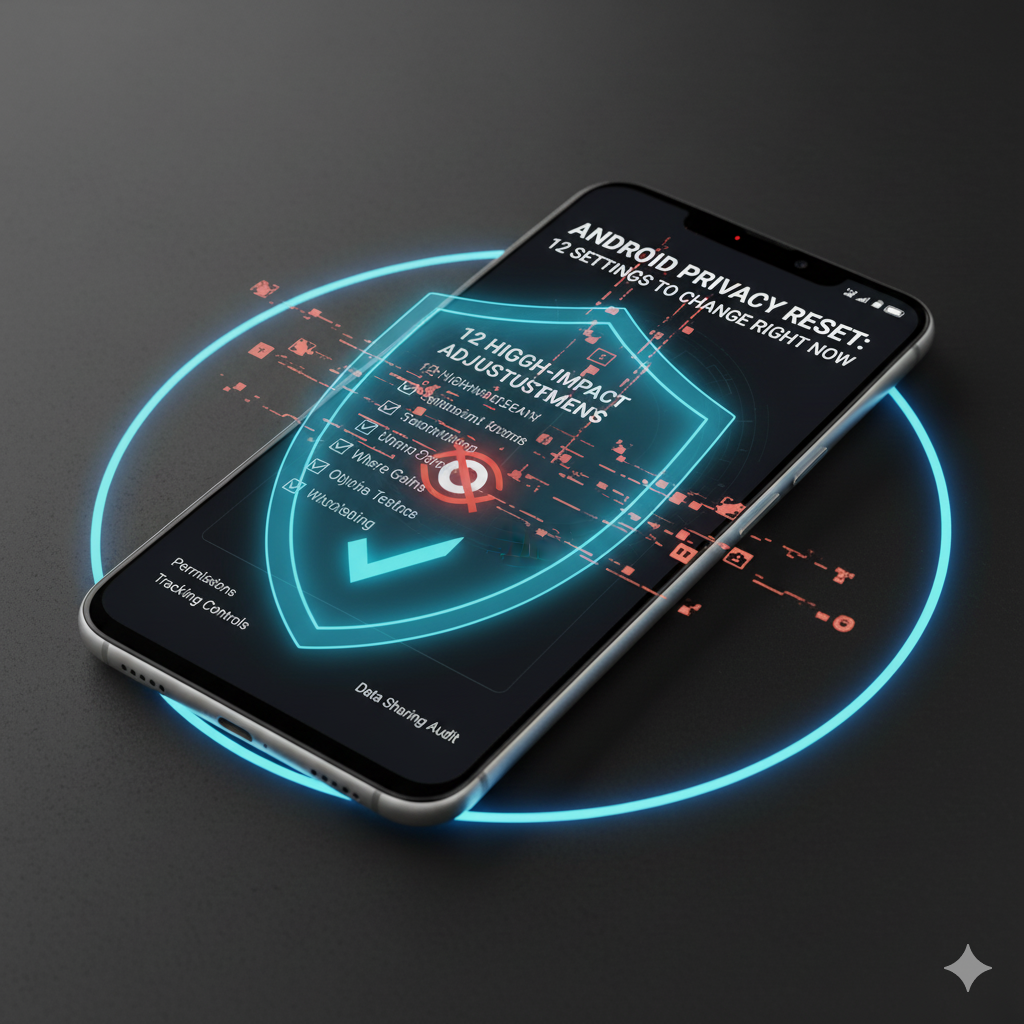

A practical walkthrough to reclaim Android privacy—permissions, tracking controls, backups, and subtle defaults many users overlook.
You install apps, accept prompts, sign into services—and slowly leak more data signals than you realize. A “privacy reset” doesn’t mean going paranoid; it means auditing defaults so only intentional sharing persists.
Below: 12 high-impact adjustments plus an optional deeper layer.
1. Permission Hygiene Pass
Open Settings → Privacy → Permission Manager (wording varies). For each category (Location, Camera, Microphone, Files & Media):
Action:
- Change “Allow all the time” to “While in use” where possible (maps needs location in use; weather doesn’t need constant).
- Revoke unused camera/mic access for seldom-open apps (e.g., note apps that default requested them).
- On Android 13+, prefer “Photo picker” scoping instead of broad file access.
Result: Minimizes passive sensor exposure.
2. Background Location Rationalization
Location is one of the highest sensitivity surfaces.
Checklist:
- Remove background location from social or shopping apps that rarely need it.
- Fitness tracking? Keep foreground only unless live route tracking is essential.
- Weather apps: Some update hourly using background location—disable if manual refresh suffices.
Test: Turn off location for a borderline app for a day; see if any real functionality breaks.
3. Notification Permission Purge (Android 13+)
Each push notification is not just noise; it’s behavioral metadata (engagement pattern). Limit marketing & “engagement” notifications.
Action:
- Open Settings → Notifications → App notifications.
- Disable for: shopping, games you don’t actively play, promotional streaming apps.
- Preserve only: direct communication (messages, calls, security alerts).
4. Ad Personalization Control
Go to Settings → Privacy → Ads (or Google settings).
Action:
- Turn off ad personalization (or reset advertising ID).
- Long-term: Reduces profiling depth (ads may be less “relevant” but less tailored tracking).
5. WebView & Browser Tracking Settings
In your primary browser:
- Disable third-party cookies (unless a site you need breaks).
- Enable built-in tracking protections or install a reputable content blocker extension (Firefox) / use built-in shields (Brave).
- Clear site data for old unused domains.
Don’t install suspicious root certificate “ad blockers” that intercept traffic.
6. Restrict Unnecessary Backup Surfaces
Audit what auto-syncs to cloud:
- Notes, photos, call logs, device settings.
Remove categories you never intend to restore (e.g., call logs if not needed). Less cloud data = smaller attack surface.
Photos:
- Disable automatic backup for heavy meme/sticker folders (curate before syncing).
- Use manual selective backup if privacy-critical sets are involved.
7. Autofill & Clipboard Scrutiny
Password managers:
- Keep autofill but disable automatic saving of every form field.
Clipboard: - On newer Android versions, clipboard content auto-clears after a period; rely on that default—avoid apps requesting constant clipboard monitoring.
8. App Linking & Default Behavior
Deep links:
- Settings → Apps → Default apps → Opening links.
Disable “Open supported links” for apps that escalate into automatic open on ambiguous URLs (tracking bounce paths).
9. Wi-Fi & Bluetooth Auto-Scanning
In Location settings:
- Disable “Wi-Fi scanning” and “Bluetooth scanning” for location improvement if you don’t rely on ultra-precise passive location. These scans help triangulation but add environmental data collection vectors.
Trade-off: Slightly less accurate location for weather routing; most users won’t notice.
10. Smart Assistant Data Scope
Google Assistant / other assistants:
- Review Activity Controls (web & app activity, voice & audio, device info).
- Pause or auto-delete older activity (choose 3-month or 18-month auto-delete rather than indefinite).
11. App-by-App “Restricted” Battery (Privacy Side Benefit)
Restrict background for apps you only use actively. Fewer background runs = fewer periodic network calls transmitting usage metadata.
Action:
Settings → Apps → Battery → Select “Restricted” for low-priority apps (catalog browsers you check monthly, etc.).
12. Local Lockdown Review
Lock screen:
- Hide sensitive notification content (only show icons).
- Disable camera shortcut if concerned about unauthorized quick capture (optional).
Biometrics: - Ensure fingerprint + backup PIN complexity (avoid 1234 / simple patterns).
- Enable Smart Lock only for trusted devices—not broad location (home geofence sometimes too permissive).
Optional Advanced Layer
| Option | Benefit | Trade-Off |
|---|---|---|
| Private DNS (e.g., dns.quad9.net, or a trusted encrypted DNS) | Reduces access to known malicious domains + potential tracking | Some regional content may break |
| Use F-Droid for select privacy-first apps | Alternative ecosystem, open-source transparency | Smaller app catalog |
| Install tracker-blocking firewall (e.g., NetGuard) | Visibility into outgoing domains | Requires learning rule management |
| Use sandbox browser for sign-ins (separate from your main logged-in environment) | Compartmentalizes identity sessions | Extra friction switching contexts |
Simple Privacy Reset Checklist (Copy)
[ ] Permissions audited (location/camera/mic while-in-use applied)
[ ] Background location trimmed
[ ] Non-essential notification permissions revoked
[ ] Ad personalization disabled/reset
[ ] Browser tracking protections on
[ ] Cloud backup scope reduced (photos curated)
[ ] Autofill settings tightened / clipboard trust maintained
[ ] Unwanted deep links disabled
[ ] Wi-Fi/Bluetooth scanning off (if acceptable)
[ ] Assistant activity auto-delete set
[ ] Restricted battery applied to low-priority apps
[ ] Lock screen sensitive content hidden
[ ] (Optional) Private DNS applied
Measuring Impact (Not Just Feeling Better)
Privacy isn’t directly measured by battery stats, but side-effects include:
- Slightly lower idle network activity (monitor with lightweight data usage tracker).
- Fewer notification interruptions (attention reclaimed).
- Reduced accidental location pings (battery marginal improvement for some).
You can track weekly total notifications (some launchers/widgets show counts) before vs after.
Common Misconceptions
| Claim | Reality |
|---|---|
| “Turning off permissions breaks every app.” | Most modern apps handle runtime denial gracefully; test selectively. |
| “Ad personalization off = no ads.” | You still get ads; they’re just less tailored. |
| “Disabling scanning ruins navigation.” | Regular GPS remains functional; scanning optimizes accuracy for certain cases. |
| “Private DNS = full anonymity.” | Helps with DNS-level tracking mitigation, but not full traffic encryption (use HTTPS/VPN as needed). |
Internal Links (Add After Publishing)
- Battery drain diagnostic workflow (link)
- Safe de-bloating guide (link)
- Speed optimisation blueprint (link)
- Adaptive Battery explanation (link)
Closing
A privacy reset isn’t a one-time purge; it’s a mindset of intentional permission granting. Apply these 12 changes, live with them for a week, then re-enable only what you miss.
Comment with the single most surprising permission you revoked without any negative effect—I’ll compile them for a later post.