
A cautious, evidence-based walkthrough for reducing Android bloat without breaking notifications, updates, or core services.
“Debloating” should mean removing (or disabling) unneeded vendor, carrier, or promotional apps that consume resources—not blindly purging random system packages from a forum list.
This guide gives you:
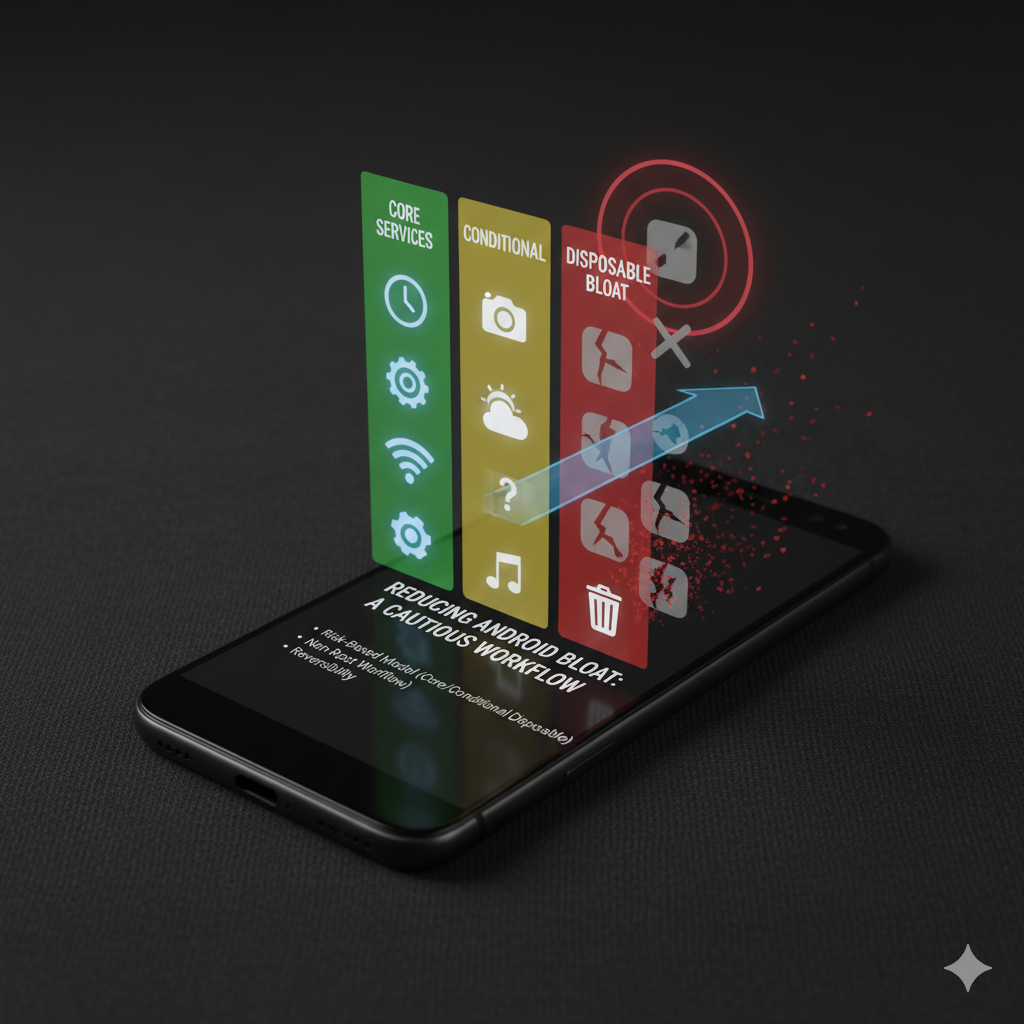
- A risk-based classification model (Core / Conditional / Disposable).
- A step-by-step non-root debloat workflow.
- Reversibility best practices.
- Package examples across three device archetypes (Samsung midrange, Pixel, older OnePlus).
Philosophy: Disable > Uninstall (Non-Root)
Disabling:
- Prevents runtime, sync, and widget provisioning.
- Retains the package for easy re-enable.
Uninstalling (viapm uninstall --user 0) is harder to track; you might forget you removed a dependency.
If you must uninstall, record the action in a log.
Classification Model
- Core (KEEP):
- SystemUI, Android System, Telephony, Carrier Services, Google Play Services, Google Services Framework.
- Input frameworks (IME), permission controllers, media codecs.
- Conditional (Evaluate Before Disabling):
- Pre-installed vendor cloud storage clients (if unused).
- OEM-specific stores (Samsung Galaxy Store) — keep if you need exclusive updates (watch apps, themes).
- Digital wellbeing / analytics — disabling may affect usage insights.
- Disposable (Safe to Disable If Unused):
- Preloaded social media stubs (Facebook services on some devices).
- Carrier-branded visual voicemail apps when alternative used.
- Demo content packages.
- Redundant partner app bundles (booking, shopping, streaming trials).
Preparation Checklist
- Backup essentials: Photos, notes, messaging app histories (cloud or local export).
- Charge ≥50%.
- Install ADB on computer (or use WebADB in browser).
- Create a log file (simple text) to record every package and action:
date | action | packageName | reasonStep-by-Step Workflow
Step 1: Inventory
List packages:
adb shell pm list packages > all_packages.txtOptional: Narrow by known vendor prefixes:
adb shell pm list packages | grep -i samsung
adb shell pm list packages | grep -i facebook
Step 2: Identify Candidates
Look for:
- Obvious trial / promo apps you never opened.
- Social media integration packages you don’t use.
- Redundant backup/photo services (pick one primary).
- Alternative browser you never touched (if preloaded).
Step 3: Check Dependencies
Before disabling a package:
- Search quick web query: “ safe to disable ”.
- Confirm no tie to push notification bridging (rare for disposable packages but caution warranted).
Step 4: Disable (Preferred)
Syntax:
adb shell pm disable-user --user 0 com.example.packageExamples (generic—verify existence):
adb shell pm disable-user --user 0 com.facebook.appmanager
adb shell pm disable-user --user 0 com.facebook.services
adb shell pm disable-user --user 0 com.netflix.partner.activation
Step 5: Reboot & Observe
After disabling a batch (limit to 3–5 at a time):
- Reboot.
- Confirm no crash loops or missing critical notifications.
- Check battery stats after a few hours.
Step 6: Escalate Only If Stable
Proceed to next batch. Avoid disabling overlapping feature sets in a single pass (e.g., multiple vendor-specific update agents).
Reversal
Re-enable:
adb shell pm enable com.facebook.appmanagerIf you uninstalled:
adb shell cmd package install-existing com.facebook.appmanager(This works only if the base package still exists for the user or in system image.)
If an app fails to reinstall via Play Store later, you may need factory reset to fully restore removed packages—reason to prefer disabling first.
Logging Template
2025-10-21 | disable-user | com.facebook.appmanager | Preloaded social integration unused
2025-10-21 | disable-user | com.netflix.partner.activation | One-time activation stub
2025-10-21 | enable | com.facebook.appmanager | Needed? (If reversing)
Keep this file somewhere backed up (e.g., synced note or git repo) for transparency and recovery.
Sample Package Archetypes (Illustrative Only)
| Category | Example Package (Varies by OEM) | Action | Notes |
|---|---|---|---|
| Social Stub | com.facebook.system | Disable | Preinstalled on some Samsung builds |
| Partner Streaming | com.netflix.partner.activation | Disable | Activation helper only |
| Vendor Cloud | com.samsung.android.mobileservice | Conditional | Keep if using Samsung ecosystem |
| Demo | com.android.providers.partnerbookmarks | Disable | Old bookmark provider; verify existence |
| Analytics / Wellbeing | com.google.android.apps.wellbeing | Conditional | Disable only if not using stats |
| Alternative Browser | com.opera.browser | Disable | If you never use it |
| Carrier Add-on | com.carrier.app | Conditional | Check if voicemail depends on it |
(Again: verify each exists on your device before acting.)
Warning Signs to Stop
- Persistent “App keeps stopping” system alerts after batch.
- Missing SMS or push notifications (re-enable last disabled package sets).
- Inability to open camera or phone dialer (indicates deeper dependency conflict).
Undo the last batch first—avoid panic factory resets.
Complementary Optimizations
Pair debloat with:
- Battery drain diagnostic workflow (link)
- Safe de-bloating guide (link)
- Speed optimization blueprint (link)
- Privacy reset (link)
- Adaptive Battery deep dive (link)
Each addresses different aspects of friction.
Frequently Asked “Can I Disable…?”
- Google Play Services? → NO. Breaks push, location, many APIs.
- System WebView? → Only update; don’t disable (many apps render content via it).
- Launcher? → Only if you installed a stable replacement and know how to switch back.
- Carrier Services? → Usually keep; SMS/MMS reliability can suffer.
Myth Busting
- “Removing bloat doubles battery life.” Usually improvements are modest (few percent) unless a truly rogue sync package was active.
- “You must root to debloat safely.” Non-root disabling already achieves most low-risk wins.
- “Every optimization list is safe.” Context matters—device, version, region.
Validation Template
Initial Packages Disabled: 4
Side Effects: None
Battery Idle Drain (6h): Before 8%, After 5%
Cold App Launch Time (Messages): Before 1.9s, After 1.6s
Subjective Lag: Keyboard stutter reduced
Proceed with next batch? Yes (targeting redundant streaming trial apps)
Closing
Debloating is about reclaiming predictability—lower background churn, cleaner update paths, reduced distraction. Approach it slowly, log everything, measure small gains, and never treat random giant lists as gospel. Need additional assistance ? Check : https://www.reddit.com/r/androidapps/comments/1gs08um/how_to_debloat_android_phone/
Drop a comment with your device + the single most pointless preinstall you found; I’ll compile a cross-device “Top 10 True Disposables.”