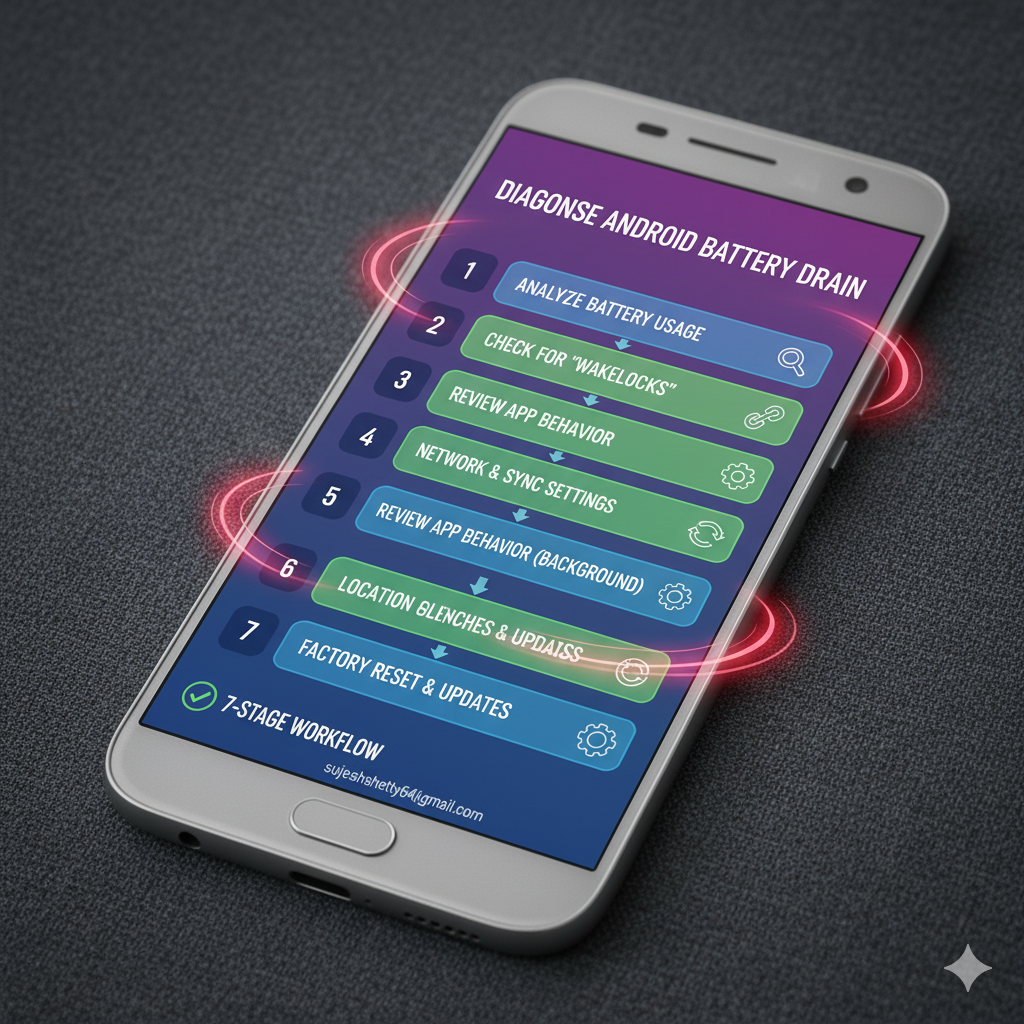

A structured 7-stage diagnostic process to identify and fix abnormal Android battery drain—especially overnight losses.
You go to bed at 63% and wake up at 41%. No screen time, no gaming session—just silent drain. Randomly toggling settings rarely fixes it. You need a repeatable diagnostic flow that narrows culprits logically.
Below: A 7-stage process I use when overnight loss >8% or daytime idle drain feels rapid (>10% per 3 hours with minimal interaction).
Before You Start: Define “Abnormal”
Typical healthy idle overnight drain (8 hours) on a mainstream device with moderate apps installed: 2–6%.
Concerning: >8% consistently (no poor signal caveat).
Day idle baseline (screen mostly off): 3–5% per 4 hours.
Concerning: >12% per 4 hours.
If you’re in heavy poor reception zones or use constant location tracking apps (delivery, fitness), adjust expectations slightly.
Stage 1: Confirm with Fresh Baseline
- Charge to ~80–90% (balancing longevity; full charge is okay for test though).
- Reboot.
- Disable active charging (unplug).
- Leave device face-down (to prevent ambient display triggers) for 30 minutes.
- Note initial drop—should be ≤2%.
If initial quick drop is >4%, something aggressive starts early (sync storms, indexing, unstable service).
Stage 2: Use Built-In Battery Metrics (But Interpret Skeptically)
Open Settings → Battery → Usage since last full charge.
Look for:
- Apps with abnormally high “Background” share (e.g., a social app you didn’t open showing 8% usage).
- Android System / Google Play Services spike: Could signal sync retries, failed push connection, location loops.
- Screen number: If unexpectedly high, maybe ambient/always-on display every glance.
BUT: Android’s percentage view can mislead; small totals exaggerate percentages. Combine with actual mAh estimation (if your OEM shows it).
Action:
- Tap into suspicious app entries → confirm background restriction status.
- For a single outlier, force stop + watch recurrence.
Stage 3: Check Wake Lock & Sync Behavior (Low-Friction Methods)
Without root or special tools, you can still infer patterns.
Options:
- Install an app like AccuBattery (avoid ones demanding invasive permissions). Let it run for a day.
- View historical data: Look for frequent wake intervals in idle windows.
Symptoms:
- Play Services high drain paired with failing network → maybe unstable Wi-Fi or aggressive location geofencing.
- Messaging apps with constant wakeups: Many active groups, media auto-download.
Micro-tests:
- Toggle Wi-Fi off for one idle period and use cellular; compare drain.
- Turn off Bluetooth if not connected (some devices keep scanning).
Stage 4: Isolation Window (Night Test)
Perform one controlled overnight test with minimal variables.
- Disable Always-on Display (temporarily).
- Set brightness to auto (rarely relevant during sleep but ensure no scheduled max event).
- Turn off real-time location apps (toggle pause in fitness/delivery apps).
- Keep Wi-Fi ON (if stable) for push efficiency—ONLY turn it off if prior logs suggest unstable connection churn.
- Enable Airplane Mode ONLY if you suspect poor signal; note that disables normal push behavior.
Record drain. Compare to previous nights.
If Airplane Mode drastically improves drain (>50% reduction), you have radio/push resync issues—poor signal or constant cell handovers.
Stage 5: Permission & Sync Rationalization
Audit high-drain apps:
Questions:
- Does this app need unrestricted background battery? (You can restrict in App battery usage settings.)
- Are photo backups duplicating across two services?
- Are multiple email clients polling (one should use push; others manual refresh)?
Actions:
- Consolidate backup: Keep only Google Photos OR a private backup tool active.
- Restrict background for seldom-used social apps (not primary messaging).
- Disable auto-download of media in chat apps you rarely open.
Test again for one afternoon idle period.
Stage 6: Hidden Culprits List
Common stealth drains:
- Orphaned wearable companion services (unpaired watch remnants).
- VPN apps in an error/retry loop (watch for high foreground service time).
- Cloud note sync conflict (app stuck syncing a large file).
- Keyboard personalization telemetry (disable if not needed).
- Misconfigured location accuracy (High accuracy when not using maps all day).
- Weather widgets set to hourly updates + multiple city pages.
Remediation examples:
- Weather widget refresh to every 3 or 6 hours.
- Location mode: switch to “Battery saving” when traveling without navigation.
- Uninstall/disable old watch plugin packages via App settings.
Stage 7: Advanced Observations (Optional Tools / Semi-Technical)
If still unresolved:
- Use ADB to dump battery stats (after enabling Developer Options & USB debugging):
adb shell dumpsys batterystats > batterystats.txtSearch for frequent wakeups patterns (Look for partial wake locks with repeating tags).
- Check job scheduler congestion (apps scheduling frequent sync jobs).
- Evaluate if system indexing (new mass file copy recently?)—drain usually settles after a cycle.
Root users (optional):
- Tools like BetterBatteryStats give granular partial wake lock names. Cull problematic apps or revoke sensors.
Decision Tree Summary
Overnight drain >8%?
│
├─ Poor signal? (Airplane Mode test improved dramatically) → Address radio (location, network stability, move device).
│
├─ Single app spike? → Restrict background / update / reinstall.
│
├─ Play Services spike? → Check sync loops (Photos duplication, unstable network), toggle location mode temporarily.
│
└─ Multiple moderate drains? → Consolidate backups + tighten notifications + remove redundant services.
Not Recommended “Fixes”
- Generic battery saver apps claiming AI optimization (usually just kill tasks).
- Force-stopping critical services repeatedly (causes restart overhead).
- Turning off all sync permanently (cripples usability—target the waste).
Validation Template
Date:
Baseline overnight drain (previous 3 nights): 9%, 10%, 11%
Isolation test settings: Wi-Fi ON, AOD OFF, Location Battery Saving
Overnight drain result: 5%
Change Drivers: Disabled redundant photo backup + restricted X app background usage.
Next Step: Re-enable AOD and observe if drain remains ≤6%.
When to Suspect Hardware
- Sudden large drain + device physically warm while idle (battery degradation or background runaway process).
- Battery health (if reported) <75% capacity equivalent.
- Very old lithium pack (>800 cycles) may simply exhibit higher self-discharge.
Consider professional battery replacement if other optimizations flatten.
Internal Links (Add Once Published)
- Speed optimization blueprint (link)
- Safe app debloating guide (link)
- Privacy reset (link)
- Adaptive Battery deep dive (link)
Closing
Structured diagnostics prevent guesswork. Share your isolation test results in a comment—include device + the biggest delta after a single change. I’ll compile a pattern report in a future post. For additional tips you can refer https://www.wrapcart.com/blogs/news/tips-to-boost-battery-of-andriod-mobile-part-2?gad_source=1&gad_campaignid=21513714959&gbraid=0AAAAACP44oOxpv5cynnACTVnEDfb4U7pv&gclid=CjwKCAjw3tzHBhBREiwAlMJoUuZ3_11v7Vfp3_oCcWjptJ9OoKUeMXGdPEZf-K9MaEAAPG8YhO8F6hoCONUQAvD_BwE